Studio: Recordings
Where: Menu → Teach → Studio → Recordings
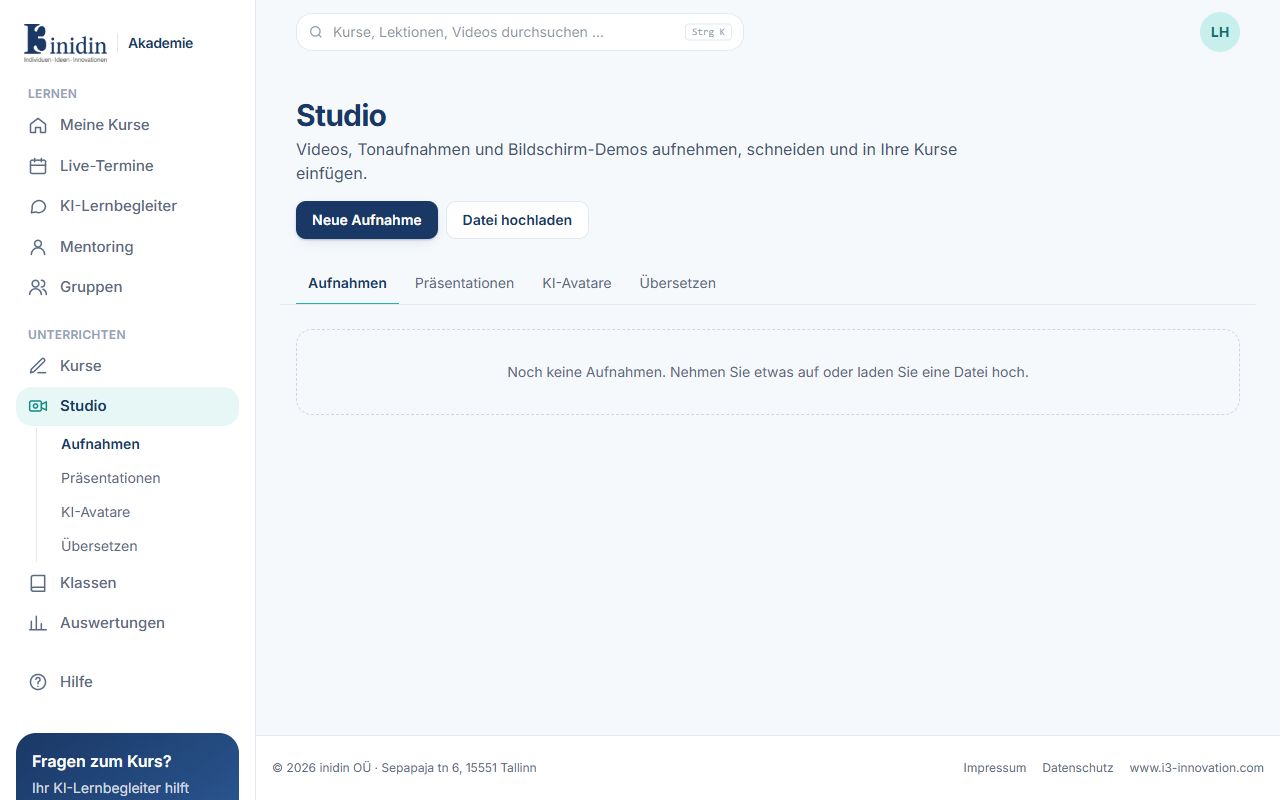
All videos and sound recordings of your organisation. Record right in the browser or upload files, cut them and put them into courses.
How to
Section titled “How to”- Click “New recording” and choose: camera, sound only, screen, or screen + camera.
- For screen recordings, choose the tab, window or whole screen.
- Click “Record now”. The controls appear in a small floating window that isn’t recorded.
- While recording, mark things with frame, arrow, pen and text, and pause if needed.
- After “Stop”, the recording is saved and processed; then it appears in the list.
Fields and buttons
Section titled “Fields and buttons”- Background (with the camera): As it is, softly or strongly blurred, a ready-made background or your own picture. The preview at the top of the recorder shows how the camera picture will look before recording: the whole picture, or the circle in the corner of a screen recording. The person is found in your browser; the camera picture isn’t sent anywhere for it. Your browser remembers the choice and your picture.
- Upload a file: Video or sound files from your computer or phone.
- Play / Rename / Cut: Watch, change the title, trim the start and end or cut out parts.
- Add to course: Pick a course and section; the recording becomes a video lesson there.
- Subtitles: Translates the transcript into other languages with DeepL.
- Translate: Has HeyGen or Synthesia translate and re-voice the video (if connected).