Presentations
Where: Menu → Teach → Presentations
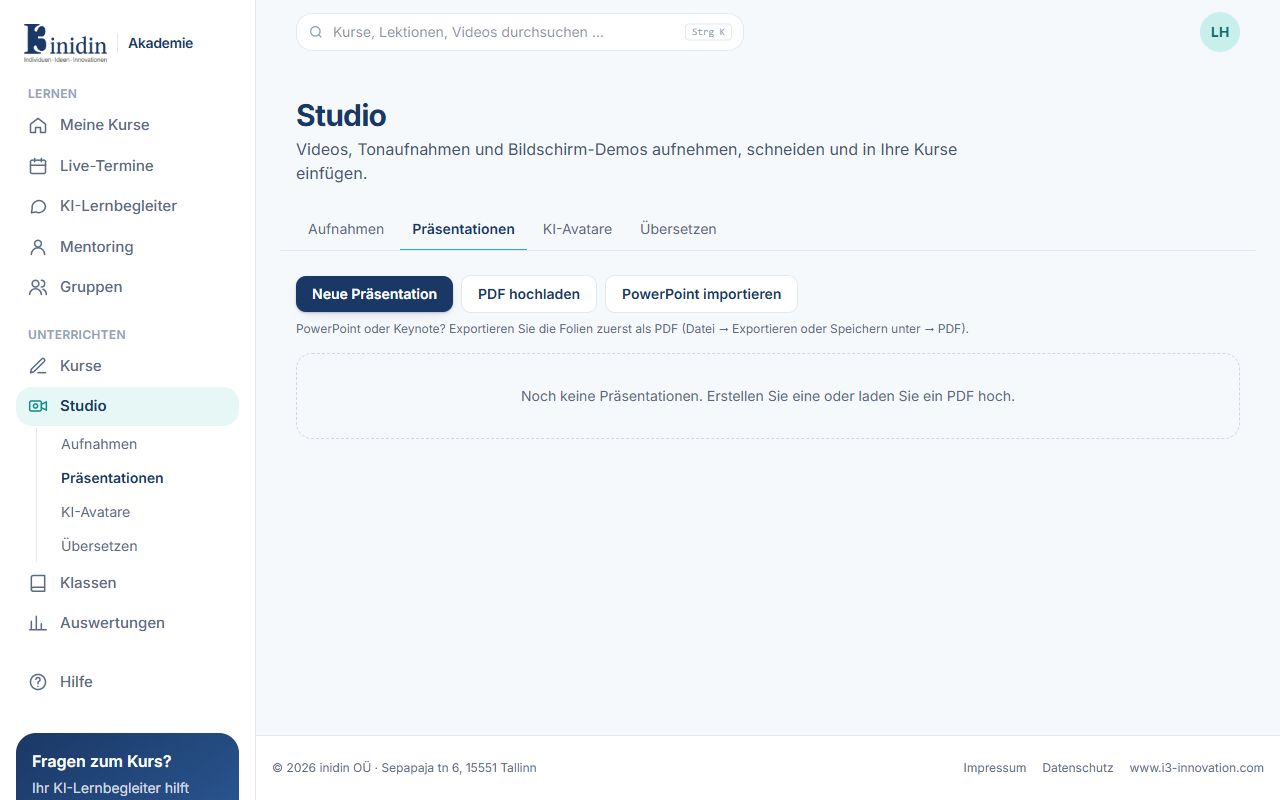
Build presentations on a canvas with slides, text, pictures and shapes, upload a PDF, or import a PowerPoint file. Add them to courses as a lesson.
Fields and buttons
Section titled “Fields and buttons”- New presentation: Opens the editor with an empty canvas.
- Upload PDF: Shows the PDF page by page in the browser; its text is read for search and the AI companion.
- Import PowerPoint: Turns a .pptx file into an editable canvas presentation.
- Slide design: New presentations start in an Academy design with logo and footer: Navy (the default), Clear or Light & turquoise. Choose your own default at the bottom of the page; administrators set the organisation’s. In the editor, “Design” changes the design of a presentation.
- Own designs: Administrators build the organisation’s own designs: “Customise” on an Academy design, “New design”, or “Design from PowerPoint” (takes the slide master of a .pptx file). In the builder you change the name, colours, logo and footer and see the title and a content slide right away. Presentations keep their look when a design is changed or deleted later.
- What it has (icons): In the overview every presentation shows a row of icons: narration, AI presenter, presenter’s script, speaker notes, presenter’s place, films and sounds, click animations, whiteboards and diagrams, AI marks, slide design and avatar videos made from it. Grey means it has none, coloured that it does; the tooltip says on how many slides. In the editor, “What it has” shows the same to open up, with switches: play the narration while presenting or mute it, remove the narration, set up the presenter. The path list and a slide’s properties show what is on each slide.
- Make a video: At the top right of a presentation’s page (canvas or PDF). The slides are taken as pictures and become a video with Synthesia or HeyGen, an AI avatar presenting each slide with its text; filled in from the presenter’s script or the speaker notes, and the AI suggests missing texts. Three ways: Synthesia (the avatar small in front of the slide, most faithful), HeyGen (the avatar cut out in front of the slide, at the start and end only, or just its voice) and HeyGen’s Video Agent (a video of its own from a detailed brief written from your slides). Choose several ways to get several videos to compare. Finished videos appear in the library.
- AI mark: Slides the AI assistant or the AI course builder made or changed carry “Made with AI” or “Edited with AI” at the top right for good, in the viewer’s language.
- Presenter (AI avatar): “Avatar” in the toolbar sets up a talking avatar of LiveAvatar (avatar, voice, language, minutes per session and per person and day) and gives it a place on slides. While presenting it says each slide’s presenter’s script and, if you like, goes on by itself; viewers can ask it questions in between (hold the button or type). It answers from the slides, never from the speaker notes. Its picture always carries “AI avatar”. LiveAvatar must be connected under Administration → Integrations.