Planning and holding live sessions
Where: Menu → Learn → Live sessions
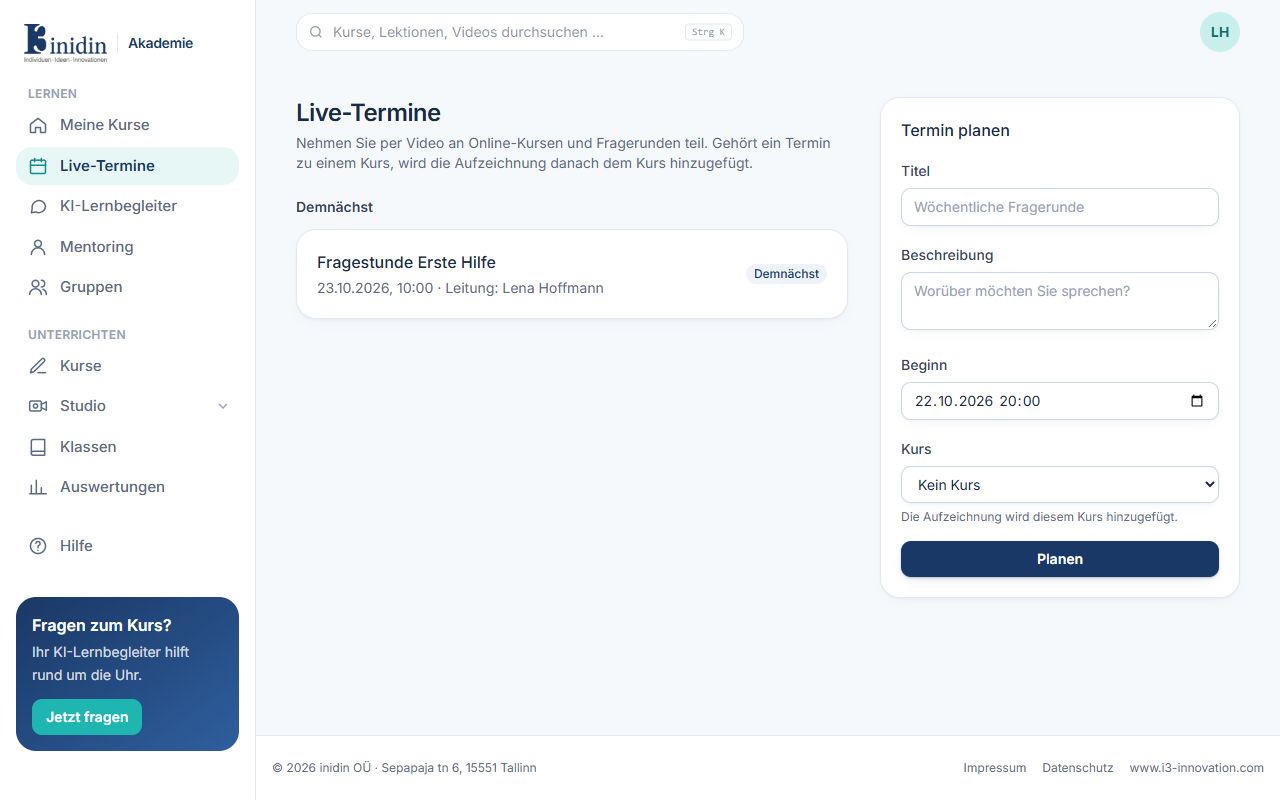
Trainers plan with “Plan a session” in five steps: details (title, description, course), dates (one date or a series), content (what can be shown in the room), recording, and participation (who for, places, price, co-presenters, participants’ files). You can go back and forth through the steps; everything stays changeable in the room under “Planning & invitation”. Clicking a planned session opens its page with all details, content, invite link and registrations. There you change it with “Edit” (the same five steps; for a series, this date only), call it off with “Cancel the session” – everyone registered gets an email that removes the calendar entry; refund paid registrations under Admin → Sales – or go to the waiting room for camera and microphone with “Start the session”. In a session you share your screen or a presentation, answer questions and run polls.
Fields and buttons
Section titled “Fields and buttons”- Title: Name of the session, e.g. “First aid Q&A”.
- Description: What it’s about (optional).
- Start: Date and time.
- Dates: One date, several days (e.g. three days in a row) or regularly (e.g. every 2 weeks on Monday – the start’s weekday and time). Each date has a room of its own, but people register once for all of them, pay once for paid series, and the calendar entry holds every date. The catalog lists the series once, with all dates on its page.
- Course: Optional: the recording is also added to this course afterwards, and its content is at hand in the room.
- Recording: “Automatically from the start” starts it once you are in the live session (the session’s page and the lobby say so beforehand); “When I start it” with the record button; “Not recorded” switches it off. Your browser records the stage and uploads it at the end – keep the window open until then. The recording goes to the Studio library; everyone who may see the session watches it on its page afterwards (for paid sessions, those who booked).
- Duration: How long the session is planned for; it’s in the invitation and the calendar entry.
- Who it is for: Internal: your organisation (or the course’s learners). Public: also in your public catalog, anyone can register. With invitation: not listed, only through the invite link.
- Places: At most this many registrations; leave empty for no limit.
- Price: Admins only, for public and invite-only sessions. Paid sessions are booked like courses through the payment page (Stripe); people are registered once the payment is confirmed. A full refund takes the registration back. Orders are listed under Admin → Sales.
- Co-presenters: Trainers who present and moderate with you from the start.