Adding an item (lesson)
Where: Course editor → Content → “+ Add item”
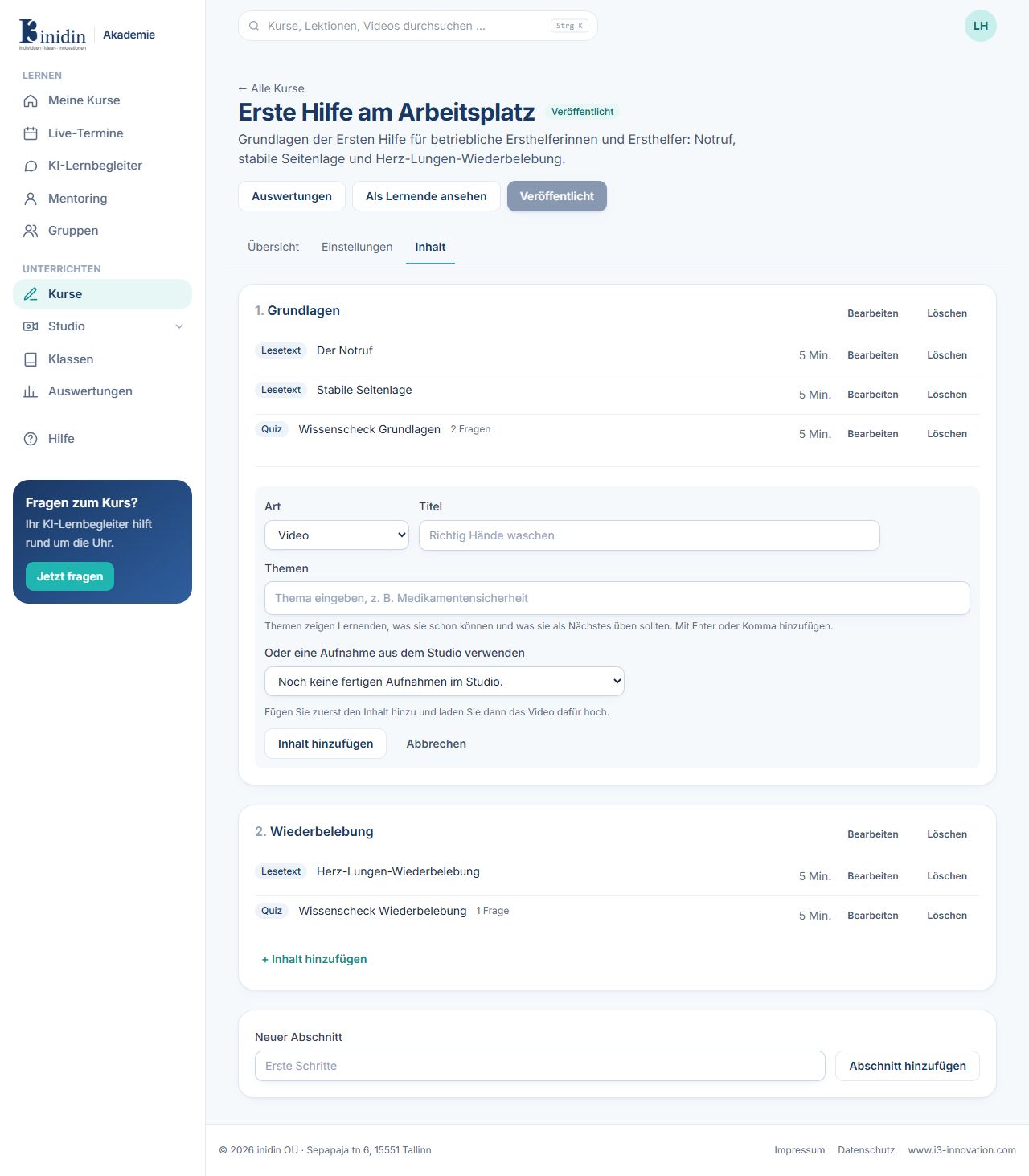
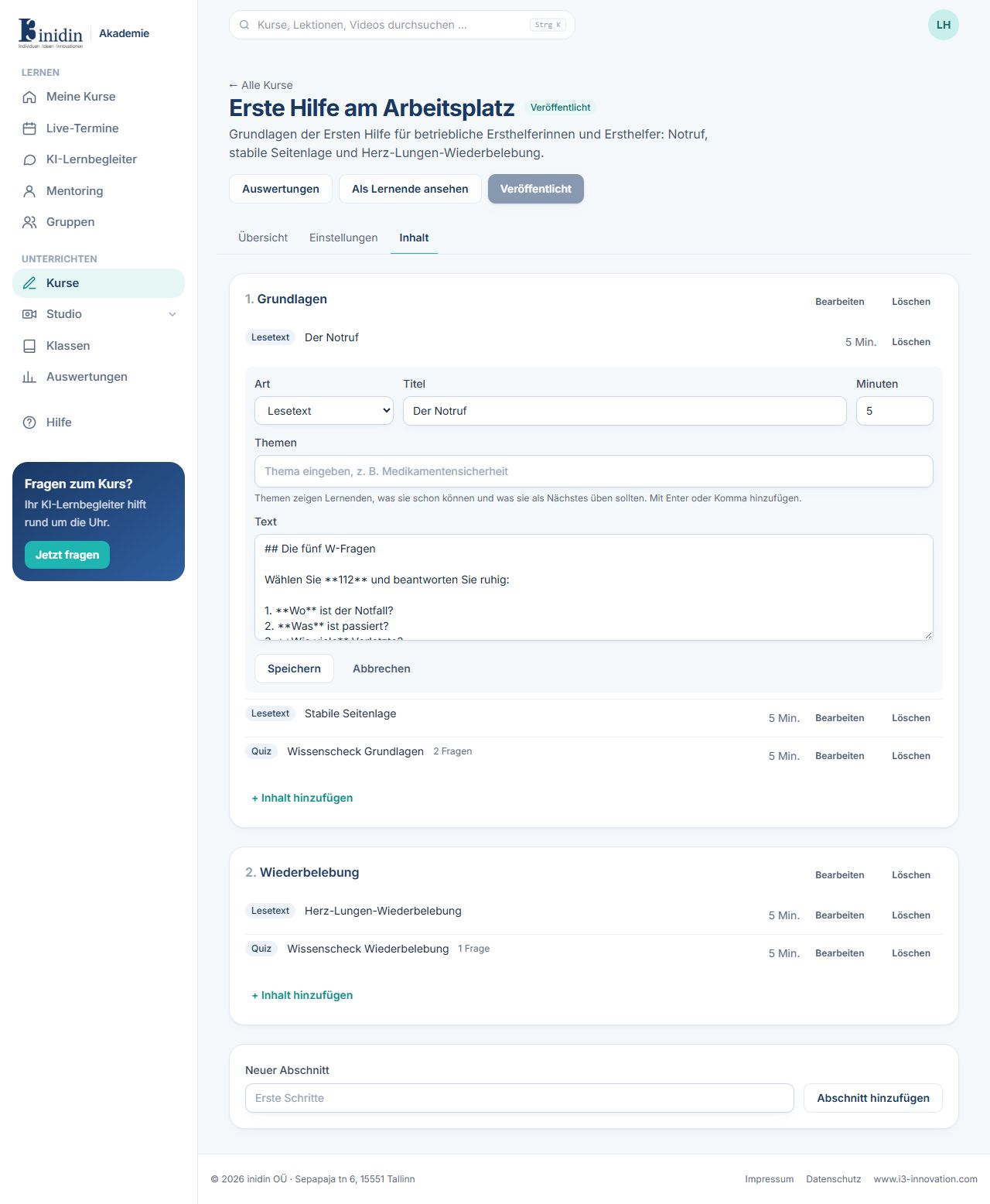
The form adapts to the kind you choose. Kind, title, length and topics are always there.
Fields and buttons
Section titled “Fields and buttons”- Kind: Video, reading, quiz, coding exercise, presentation or whiteboard.
- Title: Name of the lesson, e.g. “Washing hands properly”.
- Minutes: Rough length; adds up to the course length.
- Topics: Keywords like “first-aid.emergency-call”. The Academy uses them to see who masters what and to suggest the learning path.
- Text (reading): The content in Markdown: bold, ## heading, - list, link.
- Questions (quiz): Per question: text, answers (tick the right ones, several allowed) and an explanation learners see after answering.
- Pass mark (%): How many answers must be right to pass (default 70).
- Coding exercise: Programming language (Python, JavaScript, Go, Java or PowerShell), instructions, starter code and hidden tests that check the solution automatically: input/output tests in every language (input in, expected output out), and unit tests in Python and JavaScript. Every run is sealed off without network; learners can give their program input when they try it.
- Presentation: Choose a presentation from the Studio.
- Whiteboard: Choose a board from Teach → Whiteboard. Learners see it as it is now and can’t change it.
- Diagram: Choose a diagram from Teach → Diagrams. Learners see it as it is now, with its nodes’ info and files, and can’t change it.
- Video: Choose a recording from the Studio, or add the item and upload the video afterwards.