Your own notes
Where: In a lesson → side panel → “Notes”; all notes on the course page and under Menu → Notes
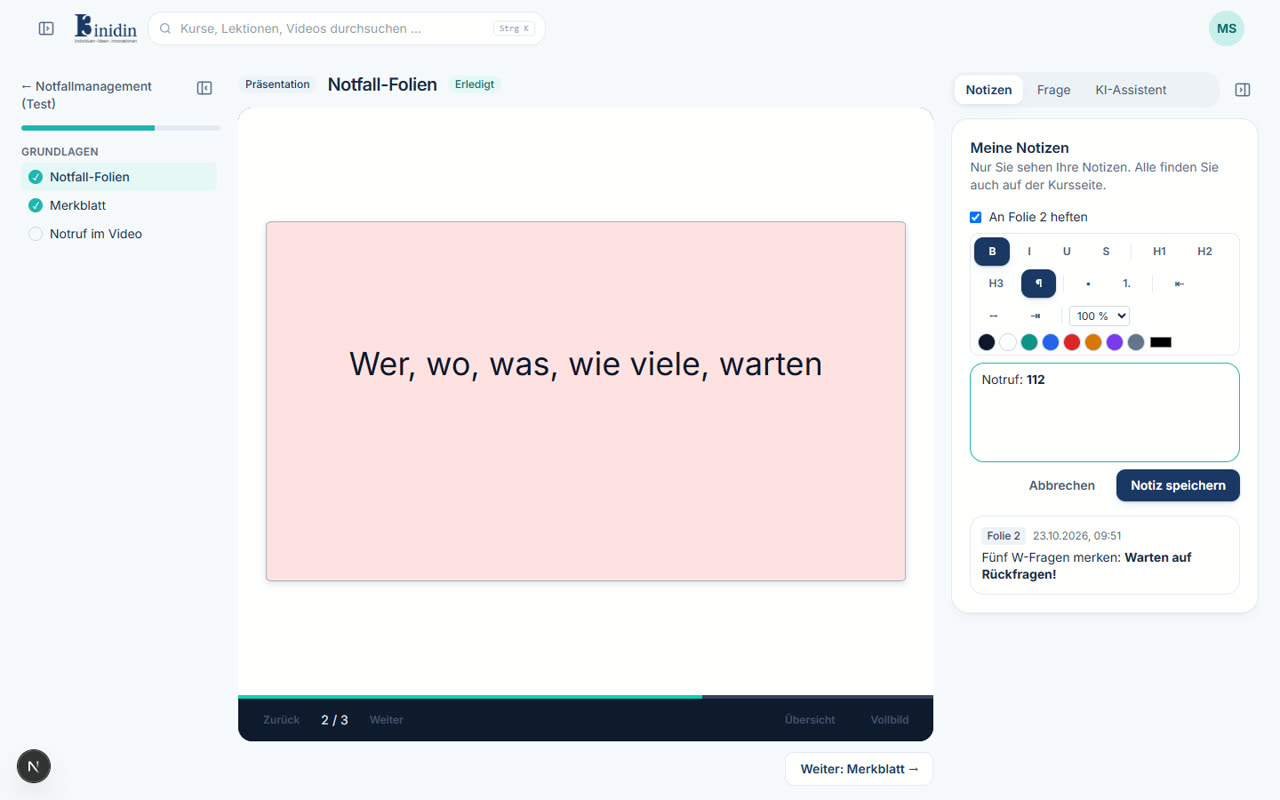
You can take notes on every lesson, with headings, lists, bold and colours. A new note is pinned to the slide or moment in the video you’re at. Only you see your notes.
How to
Section titled “How to”- Open the “Notes” tab in the side panel on the right and click “New note”.
- Write your note. The bar above formats the selected text.
- Click “Save note”. “Edit” and “Delete” change it later.
Fields and buttons
Section titled “Fields and buttons”- Pin to …: Links the note to the current slide or moment. Without the tick it’s for the whole lesson.
- My notes on the course page: Lists all notes of the course by lesson. A click opens the lesson at the note’s slide or moment.
- Menu → Notes: All notes from all your courses, finished ones too: search them, filter by course, open the lesson where you took one, or download them as a Markdown file.