Live sessions
Where: Menu → Learn → Live sessions
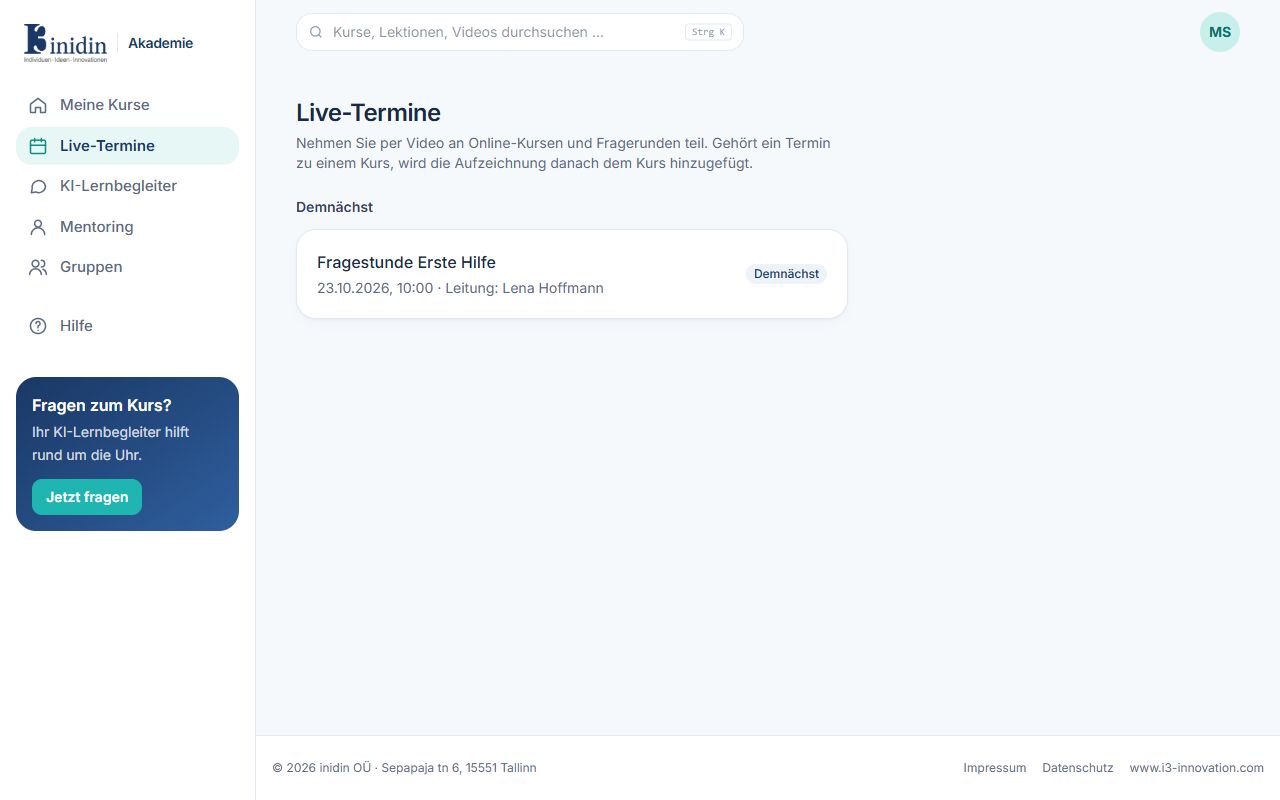
All scheduled online sessions with date, time and host. At the start time you join by video in the browser; there’s nothing to install. If a session was recorded, you watch the recording on its page afterwards; if it belongs to a course, in the course too.
How to
Section titled “How to”- At the start time, click the session. In the lobby you see yourself, choose camera and microphone and, if you like, a background (blurred, a ready-made one or your own picture). Then click “Join now”.
- You switch your camera on and off yourself (“Turn camera on”). Allow it when the browser asks.
- You can speak once a presenter allows it: click “Raise hand”. Then “Unmute” is unlocked.
- In the session you can chat, ask questions and answer polls.
- When the host sends you to a breakout room, you may speak there, share your camera and screen, and draw together with “Open the room’s whiteboard”.
Fields and buttons
Section titled “Fields and buttons”- Stage: Shows the host’s camera. When someone shares their screen, it fills the stage and their camera appears as a circle in the bottom corner.
- The room: The session opens as a window of its own: the title, LIVE and the number of participants at the top, the stage in the middle, round buttons for microphone, camera, hand and reactions at the bottom, and the side panel with chat, questions, polls, notes and info on the right.
- View, full screen, side panel: At the top right you switch between speaker and gallery view, take the room to the whole screen (Esc leaves it) and show or hide the side panel. “Leave” goes back to the overview.
- About this session: Title, course, host, time and description of the session.
- Files: Handouts from the trainers and – if the host allows it – participants’ files: PDF, Office documents, pictures, text or ZIP up to 50 MB. A click downloads; in the chat, the paper clip attaches a file. Whoever shared a file, and moderators, can remove it.
- Notes: Your own notes page for the session. Only you see it; it is saved as you type and stays in the summary after the session.
- Questions: Ask the host a question or vote for others’ questions (“Me too”). Written answers arrive in your messages.