Working through a lesson
Where: Course → click a lesson
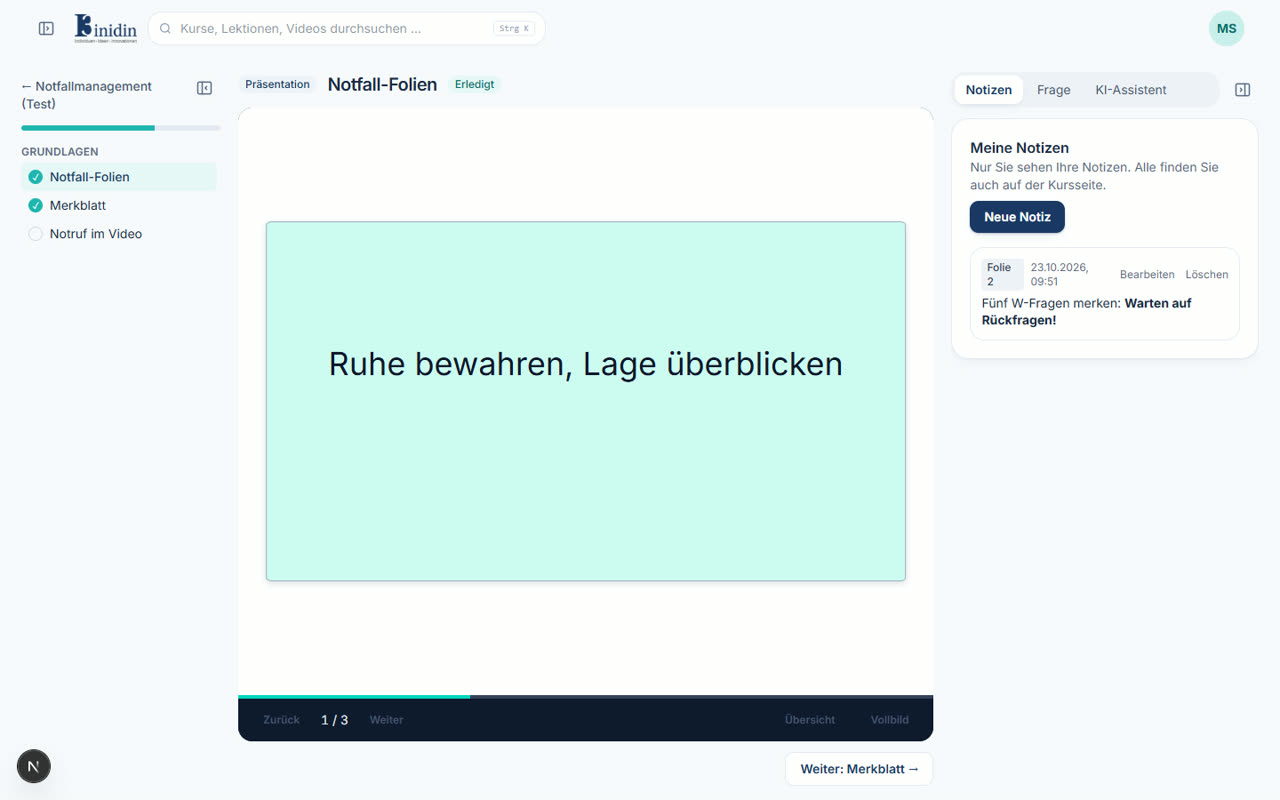
The lesson uses the whole screen: all lessons of the course on the left, the video, presentation or text in the middle, and a side panel on the right with notes, a question to the trainers, the AI assistant and, for videos, the transcript. A click on a transcript line jumps there. If there are subtitles in your language, they are already on. The main menu is hidden in lessons; open it with the button at the top left.
How to
Section titled “How to”- Read or watch the content.
- For texts, click “Mark as done”. Videos and quizzes count as done by themselves.
- “Next: …” takes you to the next lesson.
Fields and buttons
Section titled “Fields and buttons”- Side panel (Notes, Ask, AI assistant, Transcript): The tabs on the right. The AI assistant knows the lesson and, for videos, the moment you’re at. What you start in a tab stays when you switch.
- Hide lessons or side panel: The window-shaped buttons next to the lesson list and the side panel hide them, so the video or presentation gets all the room. Your browser remembers the choice.
- Live tutor: Only if your course offers a talking avatar. Ask it questions with your microphone; minutes per day are limited.
- Presentation with an AI avatar: When a presentation has a presenter, start it below the slides with “Present with the AI avatar”. It presents the slides; “Hold to ask” or a typed question interrupts it. Minutes per day are limited.
- Subtitles / language (videos): Turns subtitles on or off and picks their language. Videos marked “AI-generated” were made with an AI avatar.
- Speed (videos): Plays the video slower or faster.