First steps and finding your way
Where: The welcome wizard opens the first time you sign in.
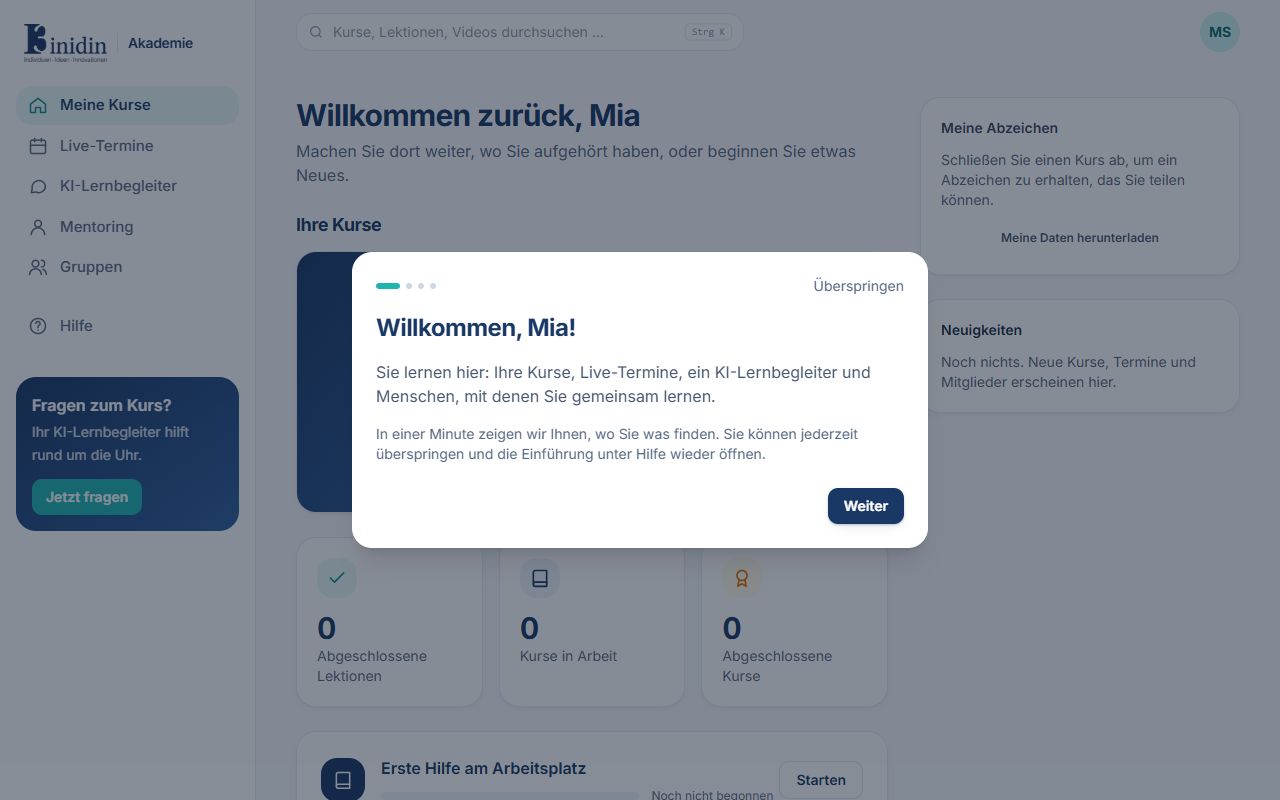
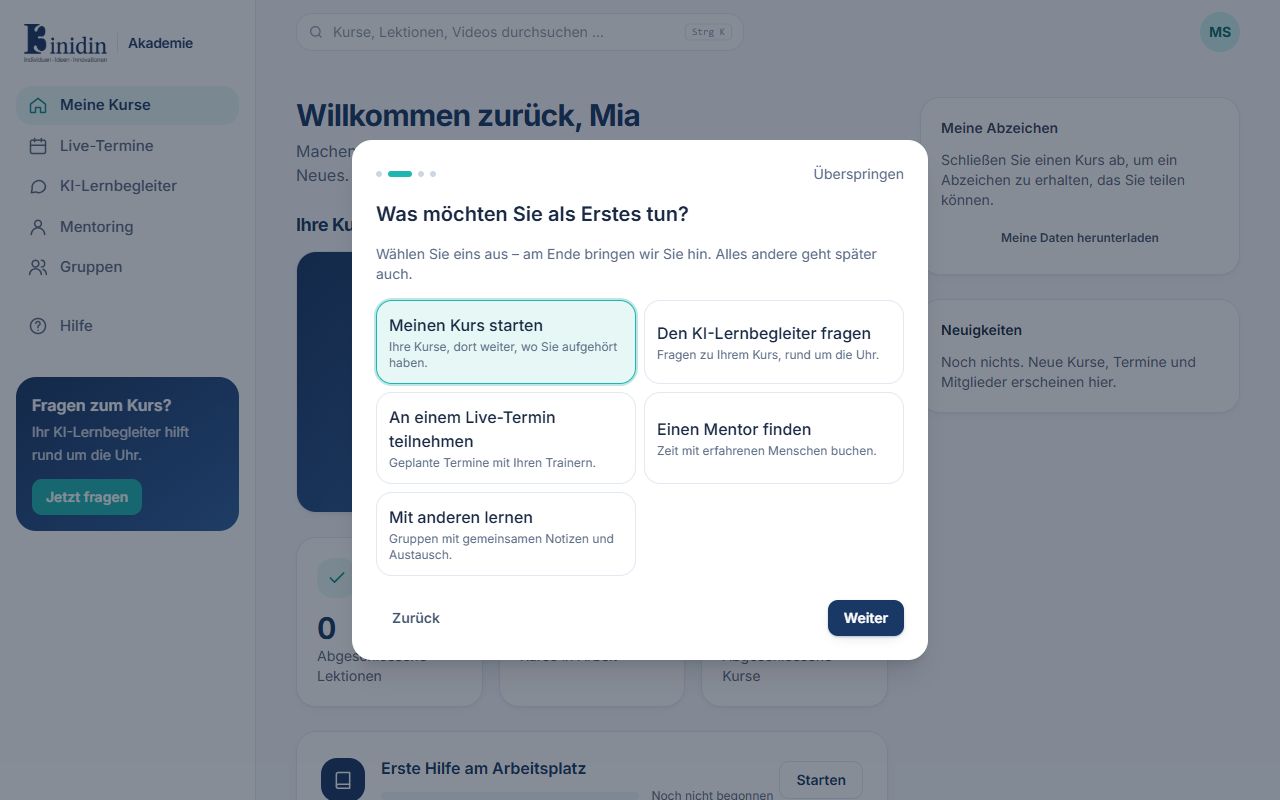
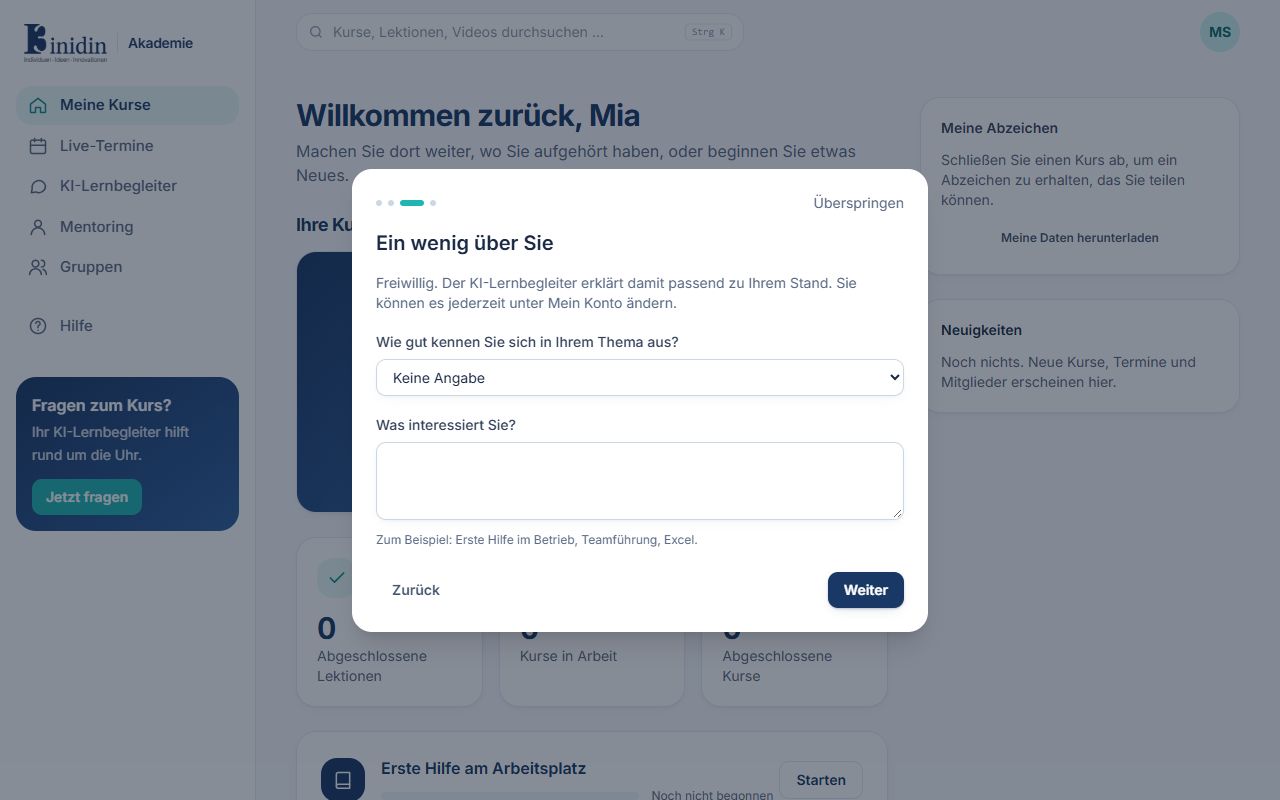
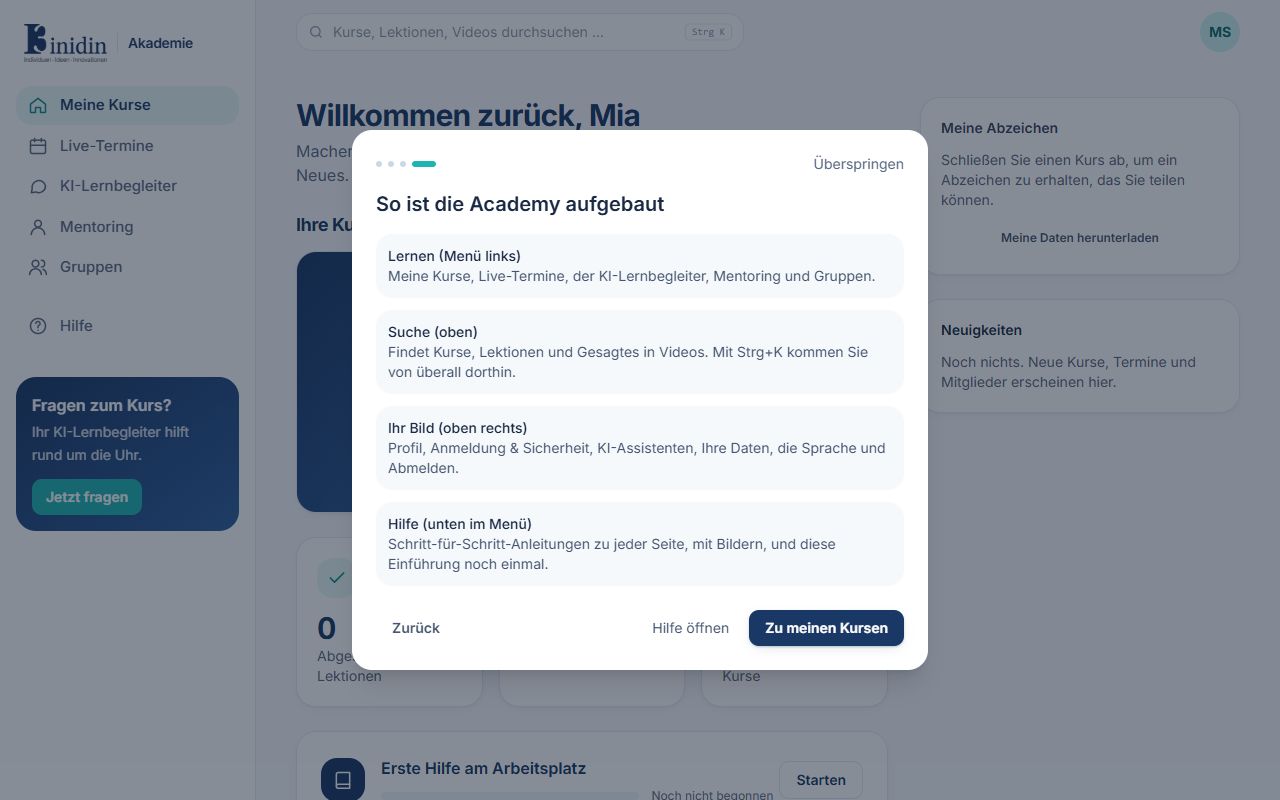
The first time you sign in, a short wizard shows you around. It asks what you’d like to do first and takes you straight there at the end. You can skip it at any time and open it again here under Help with “Show the introduction again”.
How to
Section titled “How to”- Read the welcome and click “Next”.
- Choose what you want to do first, for example “Start my course” or “Ask the AI companion”.
- Optional: say how well you know your subject and what interests you, so the AI learning companion can explain at the right level.
- Read how the portal is laid out and click the green button to get started.
Fields and buttons
Section titled “Fields and buttons”- Menu on the left: Every area: My courses, Messages (with the number of unread messages), Live sessions, AI learning companion, Mentoring, Groups and, at the bottom, Help. On a phone, open the menu with the three lines at the top left.
- Search at the top: Searches your courses and videos. Ctrl+K (Mac: Cmd+K) or “/” takes you there from anywhere.
- Your picture, top right: Opens the account menu: profile, sign-in & security, AI assistants, my data, help, language and sign out.