Integrations
Where: Menu → Manage → Integrations
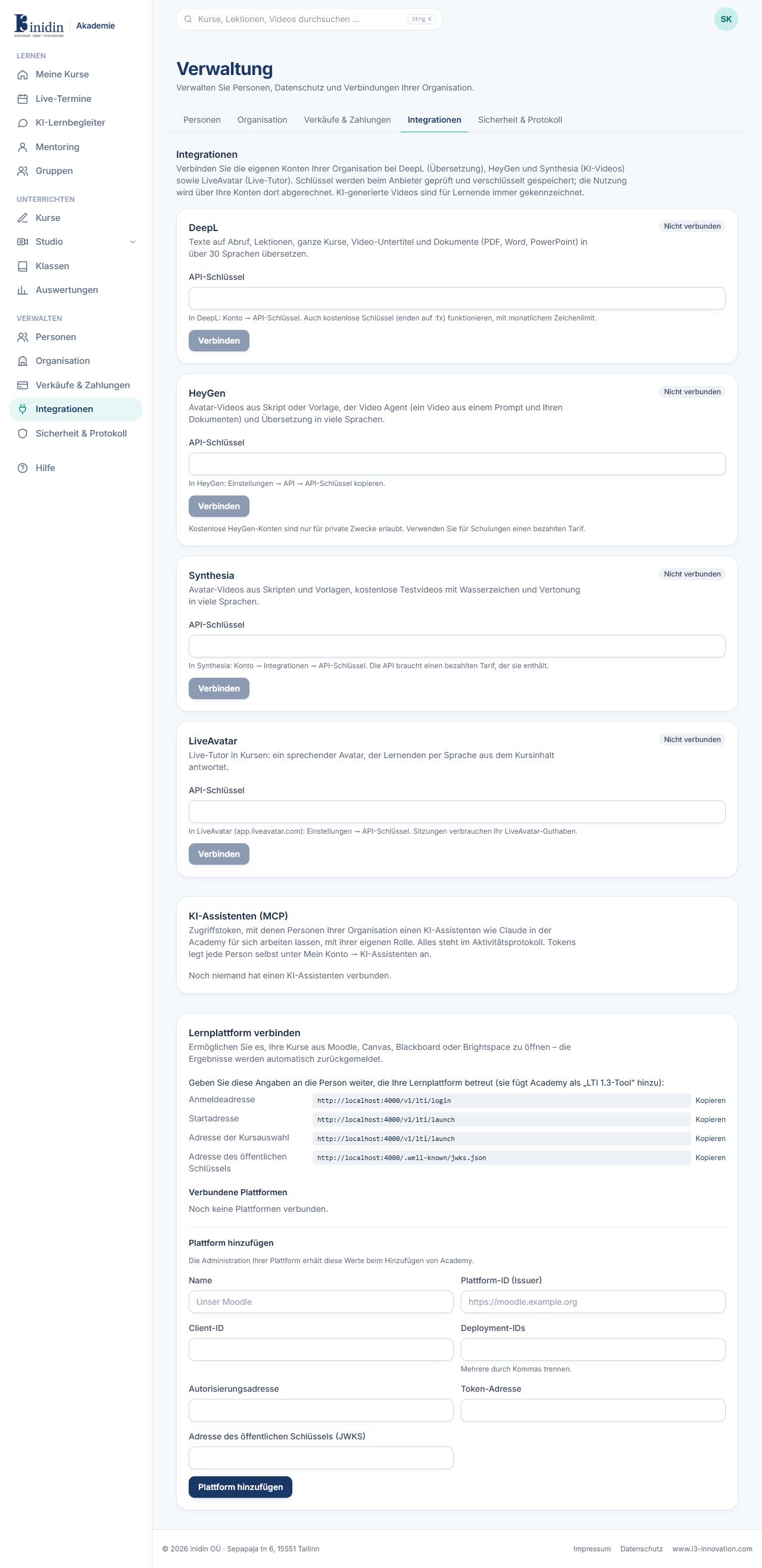
Connect your organisation’s own accounts with outside services. Keys are checked with the provider and stored encrypted; usage is billed to your accounts there.
Fields and buttons
Section titled “Fields and buttons”- Language model: Your organisation’s AI features run on it: practice questions, answer drafts after live sessions, video scripts, and the analysis of knowledge sources with course drafts. Until you connect one these features are off. Choose Anthropic, OpenAI, Mistral AI or Google Gemini with your key, or your own OpenAI-compatible server such as Azure OpenAI, vLLM or Ollama (address, key if needed). Below the provider, a guide takes you step by step through account, project, key, data location, spending limit and data processing agreement. “Check” verifies the key and loads the models you can use with it, newest first; pick one and click “Connect”. Texts go only to the provider you choose. The AI learning companion is the exception: it serves learners across organisations and runs on the platform’s AI, which the portal’s platform administrators choose and switch on (Platform → AI learning companion).
- Speech recognition: For live captions and video transcripts: OpenAI’s Whisper API (key from platform.openai.com) or your own OpenAI-compatible Whisper server (address, key if needed). “Check” loads the models to choose from; if your server lists none, enter the name. With your own server, speech never leaves your infrastructure.
- AI for learners: Whether students and mentees may use AI: the AI learning companion (chat, on the platform’s AI) and practice questions (on your language model). Both count towards your organisation’s AI budget. New organisations start without it. Trainers, mentors and admins always may; learners connect their own AI agents from outside under My account → My AI agents.
- DeepL: Translates texts, lessons, whole courses, subtitles and documents. API key from DeepL: Account → API keys.
- HeyGen / Synthesia: AI avatar videos in the Studio and translating or dubbing videos. AI videos are always marked for learners.
- LiveAvatar: The talking live tutor in courses and the presenter of presentations. Sessions use LiveAvatar credits.
- FLUX (Black Forest Labs) / OpenAI GPT Image: AI pictures for course covers. FLUX runs on EU servers in Germany and makes especially realistic photos. Each picture uses credits with the provider.
- Pexels / Pixabay: Free photos for covers. The API keys are free; chosen photos are downloaded and the photographer credited.
- Connect / Replace key / Disconnect: Enter a key and have it checked, replace it later or disconnect. For the language model, speech recognition and embeddings, “Load models” lists the models with the stored key without entering it again, e.g. to choose a newer one; “Apply” saves the choice. Videos in the library stay when you disconnect.
- AI assistants (MCP): Every AI assistant people in your organisation have connected, with owner and last use. “Revoke” blocks a token at once.
- Connect a learning platform (LTI, owners only): So your courses open from Moodle, Canvas, Blackboard or Brightspace: give the addresses to the platform and enter its values (platform ID, client ID, deployment IDs, addresses) under “Add a platform”.